
Making an asset
This guide makes one prop, a brass lantern, and lands it in the game. You can drive it from Claude Code (“make a brass lantern prop in our style”) or from the terminal; the gates are the same either way. Background: Asset pipeline.
You need: a game repo linked to your hub, and a GPU node on the team (yours or a
teammate’s; see Windows PC as a build and GPU node). For the
engine gate, open the project in Unreal Editor (weld game open) so the import can use the
editor’s MCP server.
-
Write a good brief.
Say what it is, how it’s used in the game, and any constraints. The game’s style preset and
docs/style-guide.mdare applied for you.- What: a brass oil lantern, carried by the player and hung on walls, seen from 2 to 10 m.
- Constraints: static mesh, 5,000 triangles, about 0.4 m tall.
-
Start the pipeline.
Terminal window weld asset make "a brass oil lantern with a warm glow, worn metal, glass panes" \--kind prop --tris 5000 --height 0.4 --name LanternOn a Mac the GPU steps go to a GPU node automatically (
--gpu auto). Add--opento open the review images automatically at each gate. If Claude starts it, it also addsasset:Lanternto your Work item. -
Gate 1: approve the concept.
The concept image appears in your terminal’s review and in the web asset library. Check that it matches the brief and the style, and that the silhouette reads well.
- Good? Approve.
- Right direction, bad sample? Regenerate (same brief, new seed).
- Wrong direction? Reject with a note that’s specific and visual: “Taller glass, thinner frame, a ring handle on top; less ornate.” The note updates the brief.
-
Wait for the mesh.
The GPU node removes the background and builds a textured 3D mesh with TRELLIS.2, usually a couple of minutes. Progress shows live in the asset library and in
weld asset show <id>. -
Gate 2: approve the mesh.
You see turntable renders, the wireframe, the triangle count and the texture sheet. Check that the shape matches the approved concept, there are no holes or floating bits, it’s within budget and the UVs are clean.
-
Let Blender finish it.
Headless Blender cleans the mesh, decimates it to 5,000 triangles, scales it to 0.4 m with the pivot at its base, builds LODs, exports FBX and GLB as
SM_Lantern, and renders previews. The files are registered on the hub with full provenance and copied into the game underContent/Weld/Assets/. -
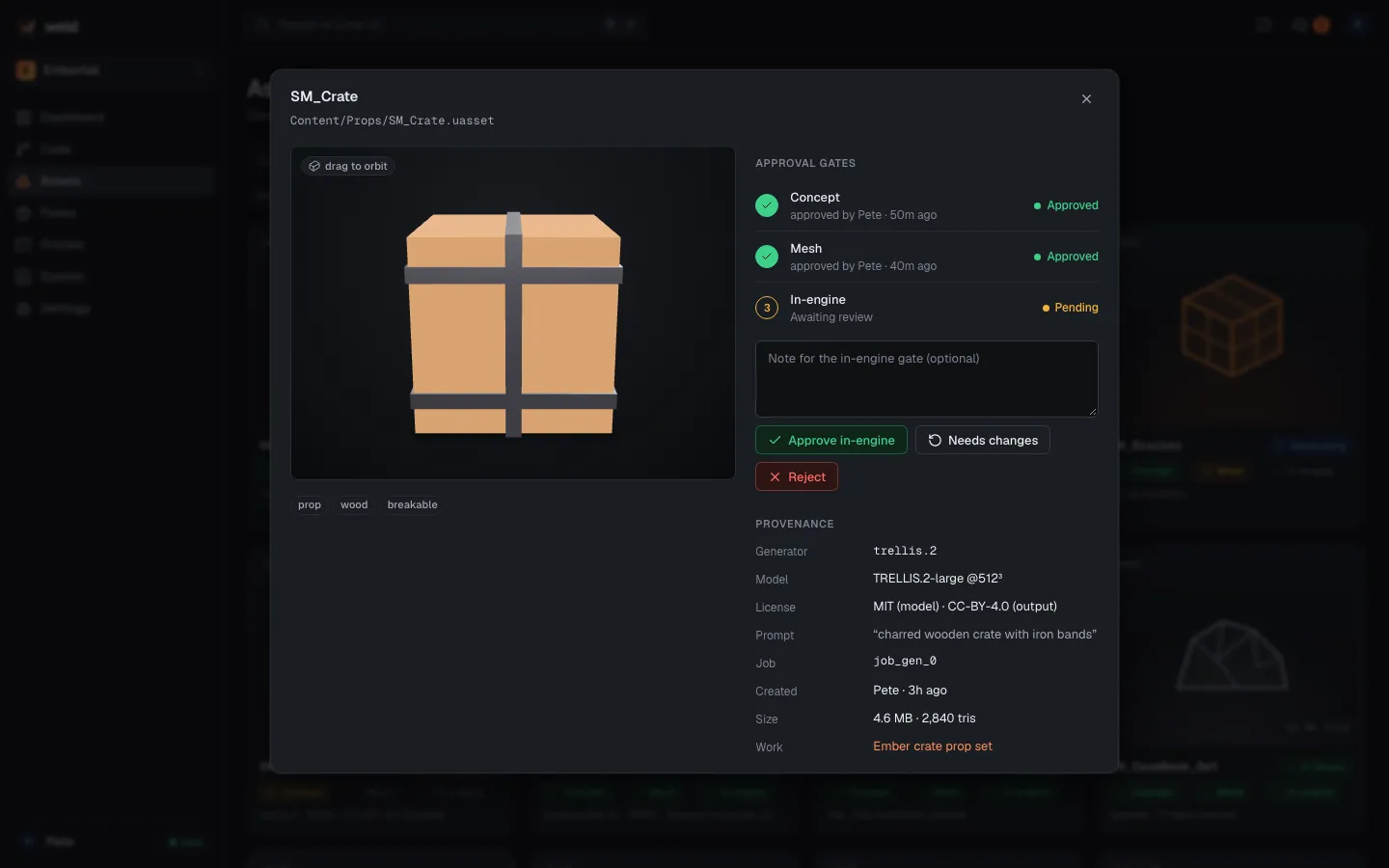
Gate 3: approve it in the engine.
Weld imports it with Unreal Interchange through the editor and takes a screenshot in a lit test map. Check its scale next to the player, materials, pivot and collision, then approve.
-
Commit and merge it.
The engine-ready files are in your checkout, tracked by Git LFS. Commit them on your Work’s branch and
weld mergeas usual. If your project uses the critic loop for art, run it with the in-engine screenshots first.
Deciding gates from elsewhere
Section titled “Deciding gates from elsewhere”Every gate also waits on the web: open Assets on the dashboard and use Approve, Needs changes or Reject, or from any terminal:
weld asset gate ast_91c2 mesh --approveweld asset gate ast_91c2 concept --reject --note "Less ornate; ring handle on top"The run continues on the first decision, wherever it’s made.
Variations
Section titled “Variations”- Your own concept art (or an image from Fab):
weld asset make --image concept.png --name Lantern. It starts at gate 1 with your image. - A character:
--kind character. Humanoid meshes get a Rigify rig in Blender. - A request from the web: “Request asset” on the Assets page creates a proposed Work item;
whoever takes it runs
weld asset make --asset <id>. - It stopped halfway:
weld asset status <dir>shows where;weld asset make --resume <dir>continues from the last finished step.